> For the complete documentation index, see [llms.txt](https://docs.monolithforensics.com/monolith/llms.txt). Markdown versions of documentation pages are available by appending `.md` to page URLs; this page is available as [Markdown](https://docs.monolithforensics.com/monolith/using-monolith/hardware-integrations/dymo-label-printers.md).
# Dymo Label Printers
Configure DYMO label printing for Monolith, build reusable label templates, print dynamic Evidence, Storage, and People labels, and troubleshoot printer connectivity.
Monolith supports DYMO label printers for creating physical labels using information already stored in Monolith.
Labels can range from a simple Evidence Number sticker to larger Evidence intake labels containing Case information, device details, Storage information, QR codes, barcodes, Custom Fields, or other organization-specific information.
Common uses include:
* Labeling physical Evidence Items
* Labeling evidence bags or containers
* Labeling Storage Items and forensic media
* Creating QR code or barcode labels for scanning
* Printing address or shipping labels for Clients and Contacts
* Creating other reusable labels using Monolith data
Once configured, users can select a label, choose an available DYMO printer, and print directly from the relevant record in Monolith. Evidence labels can also be printed for several items at once from a case's Evidence tab.
### How DYMO Label Printing Works
The label workflow uses both **DYMO Connect** and **Monolith**.
DYMO Connect is used to design the physical layout of the label. Monolith provides variables that can be placed within that design and replaced with actual record information when the label is printed.
A typical workflow looks like:
```
Install DYMO Connect
↓
Design Label in DYMO Connect
↓
Add Monolith Variables
↓
Save the .dymo Label File
↓
Settings > Item Labels
↓
Upload the Label to Monolith
↓
Open a Record, or Select Evidence Items in a Case
↓
Select Print Label or Print Labels
↓
Choose Label and DYMO Printer
↓
Monolith Populates the Variables
↓
Print
```
This allows a single label template to be reused across many records without manually typing identifying information onto each label.
### Install DYMO Software
The first step in configuring a DYMO printer with Monolith is to install the latest compatible version of **DYMO Connect for Desktop** on the computer used for printing.
* [Download DYMO Connect for Desktop for Windows](https://www.dymo.com/online-support.html)
* [Download DYMO Connect for Desktop for macOS](https://www.dymo.com/online-support.html)
After installation:
1. Connect and power on the DYMO printer.
2. Open **DYMO Connect for Desktop**.
3. Confirm that the printer appears as connected or available.
4. Print a test label directly from DYMO Connect.
5. Confirm that the DYMO web service is running.
6. Open or refresh Monolith.
{% hint style="info" %}
If the printer cannot print directly from DYMO Connect, resolve that connection first. Monolith cannot communicate with a printer that is not recognized by the DYMO software.
{% endhint %}
### DYMO Web Service
Monolith uses the DYMO web service to detect and communicate with printers available to the computer.
The service runs locally in the background and may appear in the Windows system tray or macOS menu bar. Its exact name may vary depending on the installed DYMO software version and operating system.
This local service allows Monolith to send a label directly to a selected DYMO printer without requiring the user to work through the normal operating system print dialog each time.
{% hint style="info" %}
DYMO Connect and its local web service must be installed and running on the computer used to print labels from Monolith.
{% endhint %}
### Design a Label in DYMO Connect
Label layouts are created using **DYMO Connect**.
Use DYMO Connect to select the physical label size and design the layout. You can add standard text, images, barcodes, QR codes, and other elements supported by DYMO.
Where information should come dynamically from Monolith, enter a supported Monolith variable instead of fixed text.
For example:
```
{{ evidence.evidence_number }}
```
A larger Evidence label might contain multiple variables:
```
{{ evidence.evidence_number }}
Case: {{ evidence.case_number }}
{{ evidence.case_name }}
{{ evidence.brand }} {{ evidence.model_number }}
{{ evidence.serial_number }}
```
When the label is printed from an Evidence Item, Monolith replaces those variables with information from that specific record.
{% hint style="info" %}
DYMO Connect controls the physical design, formatting, and dimensions of the label. Monolith provides the data that fills the variables when the label is printed.
{% endhint %}
### Choose the Correct Label Size
Design the DYMO template for the same physical label size that will be loaded in the printer.
Label dimensions are stored as part of the DYMO template. Printing a template designed for a different label size may cause content to print incorrectly, span multiple physical labels, or use the available space poorly.
If your organization regularly uses several label sizes, you may want separate templates for each size.
Use descriptive template names so users can easily identify the correct label when printing.
Examples might include:
* Evidence Label - Small
* Evidence Intake Label
* Evidence Barcode
* Evidence QR Code
* Storage Label
* Shipping Label
### Add Monolith Variables
Monolith variables tell the label which record information to insert when it is printed.
The complete list of currently supported variables is available under:
**Settings > Item Labels**
Variables are grouped by the type of information they represent.
Available groups include:
* Organization Variables
* Evidence Variables
* Storage Variables
* People Variables
* Custom Evidence Variables
* Custom Storage Variables
Use the variables displayed in your Monolith environment when creating new labels.
#### Organization Variables
Organization variables can populate information about your organization.
Examples include:
```
{{ organization.name }}
{{ organization.address }}
{{ organization.city }}
{{ organization.state }}
{{ organization.postal }}
{{ organization.phone }}
{{ organization.website }}
```
#### Evidence Variables
Evidence variables populate information from an Evidence Item.
Examples include:
```
{{ evidence.evidence_number }}
{{ evidence.case_number }}
{{ evidence.case_name }}
{{ evidence.location }}
{{ evidence.type }}
{{ evidence.brand }}
{{ evidence.model_number }}
{{ evidence.serial_number }}
{{ evidence.item_name }}
{{ evidence.size }}
{{ evidence.description }}
{{ evidence.organization }}
{{ evidence.progress }}
{{ evidence.intake_timestamp }}
{{ evidence.received_by }}
{{ evidence.received_from }}
{{ evidence.linked_contact }}
```
Additional Evidence variables are available directly from **Settings > Item Labels**.
#### Storage Variables
Storage variables populate information from a Storage Item.
Examples include:
```
{{ storage.storage_number }}
{{ storage.case_number }}
{{ storage.case_name }}
{{ storage.type }}
{{ storage.make }}
{{ storage.model_name }}
{{ storage.model_number }}
{{ storage.serial_number }}
{{ storage.size }}
{{ storage.description }}
{{ storage.date_created }}
{{ storage.location }}
```
#### People Variables
People variables populate information from a Client or Contact.
Examples include:
```
{{ people.name }}
{{ people.organization }}
{{ people.address }}
{{ people.city }}
{{ people.state }}
{{ people.postal }}
{{ people.phone }}
{{ people.mobile }}
{{ people.email }}
{{ people.type }}
```
People variables make it possible to use DYMO labels outside of traditional Evidence workflows.
For example, a team returning Evidence or other material to a Client can create a larger shipping or address label using the Client or Contact information already stored in Monolith.
### Custom Field Variables
Custom Fields can also be incorporated into supported labels.
Custom Evidence variables use the Custom Field ID, for example:
```
{{ evidence.custom_field_38 }}
```
The Custom Field variables available in your environment are displayed under **Settings > Item Labels**.
This allows an organization to include workflow-specific information on a label without requiring that information to be part of Monolith's standard fields.
See **Item Labels** for the complete variable reference and configuration guidance.
### Legacy Label Variables
Older Monolith labels may use the previous `#variable` syntax.
These legacy variables remain supported so existing label templates can continue to function.
For new labels, use the current double-curly-brace syntax:
```
{{ evidence.evidence_number }}
```
This syntax is preferred for new templates and is consistent with the variable style used by Monolith report templates.
### Save the DYMO Template
When the label design is complete, save it from DYMO Connect as a `.dymo` label file.
The saved file contains the label layout, formatting, objects, dimensions, and Monolith variables used by the template.
Before uploading it to Monolith, confirm that:
* The correct label size is selected.
* Dynamic fields use supported Monolith variables.
* Text fits within the label layout.
* Barcode or QR code objects use the appropriate variable.
* The template has a descriptive name that users will recognize later.
### Upload the Label to Monolith
Navigate to:
**Settings > Item Labels**
Select **Add Label**.
Choose the `.dymo` file created in DYMO Connect.
After the file is uploaded, it appears under **Your Labels** and becomes available when users print from supported records.
Existing label templates can also be downloaded from this page when they need to be reviewed or modified in DYMO Connect.
Labels can be deleted when they are no longer required.
### Print a Label
Labels can be printed from supported records throughout Monolith:
* Evidence Items
* Storage Items
* Clients
* Contacts
#### Evidence Items
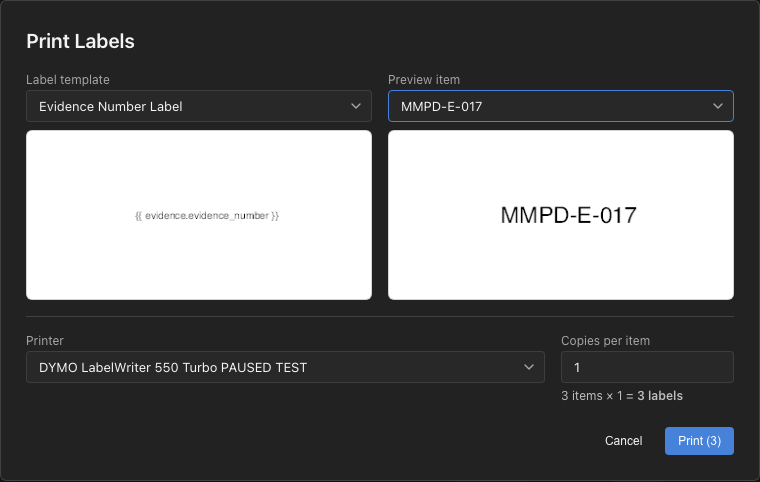
Open the Evidence Item and select **Print Label** from its actions menu. The **Print Label** window opens with that item.
1. Select the **Label template**. The preview under it shows the template the way DYMO Connect draws it.
2. Check the **Label preview** next to it. It shows the label as it'll print for this item, with the variables filled in.
3. Select the **Printer**.
4. Set **Copies per item** if you need more than one label.
5. Select **Print (N)**, where N is the total number of labels, including copies.
To print labels for several Evidence Items at once, see [Print Labels for Several Evidence Items](/monolith/using-monolith/hardware-integrations/dymo-label-printers.md#print-labels-for-several-evidence-items). It's the same window.
#### Storage Items, Clients and Contacts
Open the record and select **Print Label**.
Monolith displays the label templates available in the environment. Select the desired template.
The **Print Label** window then displays DYMO printers currently available through the local DYMO service.
1. Select the label template.
2. Select the appropriate DYMO printer.
3. Select **Print Label**.
Monolith replaces the supported variables in the selected template with information from the current record and sends the completed label to the selected printer.
{% hint style="info" %}
The printer is selected at print time. This makes it possible to use different DYMO printers or label sizes without permanently assigning one printer to a template.
{% endhint %}
### Print Labels for Several Evidence Items
You can print labels for many Evidence Items in one go from a case's Evidence tab.
1. Open the case and go to its **Evidence** tab.
2. Select the Evidence Items you want labels for.
3. Select **Actions**, then **Print Labels**.
4. Select the **Label template**.
5. Use **Preview item** to check the filled in label for any of the selected items.
6. Select the **Printer** and set **Copies per item**.
7. Select **Print (N)**.
Your selection stays in place after the labels print, so you can print another template for the same items.
#### The Previews
The window shows two previews side by side.
* The left preview shows the template the way DYMO Connect's editor draws it, with the variables as written.
* The right preview shows the label as it'll print for one item, with the variables filled in. When several items are selected, pick the specific one you want to preview under **Preview item**.
A variable that Monolith can't fill for the label stays as written. Storage and People variables don't fill on Evidence labels, so use them only on Storage, Client and Contact templates. A Custom Field variable for a field that has no value on the item prints blank.
The previews need DYMO Connect running on your computer, the same as printing.
#### Copies and Label Count
**Copies per item** prints that many labels for each selected item. The line under it shows the total, for example "6 items × 2 = 12 labels".
Above 200 labels, Monolith shows a "That's a lot of labels" warning so you can check the copies count before printing.
#### Remembered Template and Printer
Monolith remembers the last template you printed with, and the printer you used with each template, on this computer. Since each LabelWriter holds one roll size, picking a template usually picks the right printer too.
#### What Happens When You Print
All the labels go to DYMO Connect as one print job. While they send, the window shows a "Sending N labels" message with the printer's name and can't be closed.
* **Sent:** a "Sent N labels" message with the printer's name appears and the window closes.
* **DYMO Connect didn't take the batch:** nothing was sent to the printer, so it's safe to select **Try Again**. **Back** returns to the form so you can pick another printer or template.
* **We didn't hear back from DYMO Connect:** the labels may still be printing. Check the printer before you print again, or you could end up with duplicates.
{% hint style="warning" %}
Once DYMO Connect takes a batch, it can only be stopped at the printer. Check the template, the item count and the copies before you print a large batch.
{% endhint %}
#### Where Print Labels Is Available
**Print Labels** is in the **Actions** menu of a case's **Evidence** tab. The Actions menu appears once at least one item is selected.
On the main **Evidence** page, the Actions menu is only available to organizations that have bulk actions turned on for all evidence.
In the nested view, Select All selects only top level items. To print labels for child items, expand the parent and select them.
### Label Evidence Items
Evidence labeling is one of the most common uses for DYMO printing in Monolith.
After entering an Evidence Item into Monolith, you can immediately print a physical label containing identifying information such as:
* Evidence Number
* Case Number
* Case Name
* Evidence Type
* Manufacturer or provider
* Model
* Serial Number or account identifier
* Current location
* Description
* Intake information
* Custom Fields
* QR code or barcode
The label can then be placed directly on the Evidence Item or on an appropriate evidence bag, container, or other physical packaging.
This reduces the need to rewrite information that has already been entered into Monolith and creates a consistent connection between the physical item and its Monolith record.
See [**Evidence Items**](/monolith/using-monolith/evidence-management/evidence-items.md) for additional Evidence guidance.
### Label Storage Items
DYMO labels can also be printed for Storage Items.
This is useful when preparing external drives, media, or other storage assets for use within the lab.
A Storage label might include:
* Storage Number
* Make
* Model
* Serial Number
* Size
* Current location
* Associated Case information
* QR code or barcode
Labeling Storage Items can help connect the physical asset to its corresponding Monolith record and support storage, inventory, and audit workflows.
See [**Storage Items**](/monolith/using-monolith/evidence-management/storage-items.md) for additional information.
### Client and Contact Labels
Labels can also use information from Monolith Clients and Contacts.
In addition to identification labels, this makes it possible to create address or shipping labels using information such as:
```
{{ people.name }}
{{ people.organization }}
{{ people.address }}
{{ people.city }}
{{ people.state }}
{{ people.postal }}
```
For example, a forensic team returning material to a Client could print a DYMO shipping label using address information already stored on the Client or Contact record.
See [**Clients**](/monolith/using-monolith/people/clients.md) and [**Contacts**](/monolith/using-monolith/people/contacts.md) for additional information.
### QR Codes
DYMO Connect can create QR code objects whose value comes from a Monolith variable.
For Evidence Items, use:
```
{{ evidence.uuid }}
```
The Evidence UUID provides a globally unique value that can be encoded into a QR code.
When the value is scanned in Monolith, Monolith can identify and navigate to the corresponding Evidence Item.
Storage Items provide the equivalent:
```
{{ storage.uuid }}
```
Use the UUID when a QR code is preferred or when a globally unique item identifier is needed.
### Barcodes
For shorter traditional barcode labels, Monolith provides a short UUID.
For Evidence Items:
```
{{ evidence.short_uuid }}
```
For Storage Items:
```
{{ storage.short_uuid }}
```
The shorter value helps keep traditional barcodes compact while still allowing Monolith to identify the associated record when scanned.
A typical barcode workflow looks like:
```
DYMO Barcode Object
↓
{{ evidence.short_uuid }}
↓
Print Evidence Label
↓
Barcode Contains Evidence Identifier
↓
Scan Barcode in Monolith
↓
Evidence Item Located
```
### Create a QR Code or Barcode in DYMO Connect
To create a scannable label:
1. Open the label in DYMO Connect.
2. Add a **QR Code** or **Barcode** object.
3. Configure the object's data or value.
4. Enter the appropriate Monolith variable, such as `{{ evidence.uuid }}` or `{{ evidence.short_uuid }}`.
5. Position and size the object on the label.
6. Save the `.dymo` file.
7. Upload the updated template under **Settings > Item Labels**.
8. Print the label from the corresponding Evidence or Storage Item.
Monolith replaces the variable with the item's identifier before the label is sent to DYMO for printing.
### Barcode Scanning in Monolith
QR codes and barcodes can connect a physical item back to its record in Monolith.
For example:
```
Physical Evidence
↓
DYMO Label
↓
QR Code / Barcode
↓
Scan
↓
Monolith Evidence Record
```
This can make it faster to locate Evidence or Storage records during day-to-day handling.
Barcode scanning is also available in supported Evidence audit workflows, allowing physical items to be scanned during inventory or audit activities.
See the barcode scanning and [**Audits**](/monolith/using-monolith/evidence-management/audits.md) documentation for additional guidance.
### Messages in the Print Window
**Couldn't reach DYMO Connect.** Monolith can't talk to the DYMO web service on this computer. Make sure DYMO Connect is running, then select **Refresh**. If it still doesn't connect, follow [Printer Not Detected in Monolith](/monolith/using-monolith/hardware-integrations/dymo-label-printers.md#printer-not-detected-in-monolith), starting with restarting the DYMO web service.
**No DYMO printers found.** DYMO Connect is running but doesn't see a printer. Connect and power on a DYMO printer, confirm it shows up in DYMO Connect, and try again.
**The preview needs DYMO Connect running on this computer.** The previews are drawn by DYMO Connect, so they need the same connection as printing.
### Printer Not Detected in Monolith
If the printer works in DYMO Connect but does not appear in Monolith, complete the following steps in order.
#### 1. Confirm the Printer Works in DYMO Connect
Open DYMO Connect and confirm that:
* The correct printer appears in the application.
* The printer is shown as connected or available.
* A test label prints successfully.
If the printer does not appear or cannot print, check its power, USB or network connection, and DYMO configuration before continuing.
#### 2. Restart the DYMO Web Service
Find the DYMO service icon in the Windows system tray or macOS menu bar.
Then:
1. Open the service menu.
2. Select **Stop Service**, **Quit**, or the closest available option.
3. Wait a few seconds.
4. Restart or reopen the service.
If there is no separate start option, fully quit and reopen DYMO Connect for Desktop.
{% hint style="info" %}
The service may appear as **DYMO Connect Web Service**, **DYMO Web Service**, `DYMO.WebAPI.Mac.Host`, or a similar name depending on your operating system and DYMO software version.
{% endhint %}
#### 3. Restart the Printer
Power cycle the DYMO printer:
1. Turn off or disconnect the printer.
2. Wait several seconds.
3. Reconnect or power the printer back on.
4. Confirm that it reappears in DYMO Connect.
#### 4. Restart Monolith
Fully close and reopen Monolith, then try printing again.
If you are using Monolith in a web browser, refresh the page after restarting the DYMO web service.
#### 5. Restart the Computer
If the printer still does not appear, restart the computer. This restarts DYMO Connect, the local web service, and the printer connection together.
After restarting:
1. Open DYMO Connect.
2. Confirm that the printer is connected.
3. Confirm that the DYMO web service is running.
4. Open Monolith.
5. Try printing the label again.
### Recommended Troubleshooting Order
When Monolith cannot find the printer:
1. Confirm that the printer appears in DYMO Connect.
2. Print a test label directly from DYMO Connect.
3. Restart the DYMO web service.
4. Power cycle the printer.
5. Fully close and reopen Monolith.
6. Restart the computer.
7. Try printing from Monolith again.
If direct printing works in DYMO Connect but Monolith still cannot detect the printer, the issue commonly points to the DYMO web service connection rather than the physical printer.
### Label Prints Incorrectly
If a label prints but the content is misaligned, split across multiple labels, or otherwise formatted incorrectly, confirm that the physical label loaded in the printer matches the dimensions used when the template was created in DYMO Connect.
If dynamic Monolith data does not appear correctly:
1. Open or download the template in DYMO Connect.
2. Confirm that the Monolith variable has not been modified or broken apart by the label editor.
3. Compare the variable with the current syntax shown under **Settings > Item Labels**.
4. Save the corrected template.
5. Upload the updated `.dymo` file to Monolith.
6. Test the label again.
For new templates, use the current `{{ ... }}` syntax rather than legacy `#` variables.
### macOS Setup
After installing DYMO Connect for Desktop on macOS, confirm that `DYMO.WebAPI.Mac.Host` is running.
The service normally appears as a small DYMO icon in the menu bar at the top of the screen.
If it is not running:
1. Open the **Applications** folder.
2. Find `DYMO.WebAPI.Mac.Host`.
3. Launch the application.
4. Confirm that the DYMO icon appears in the menu bar.
5. Refresh or reopen Monolith.
6. Try printing again.
Once the service is running and the printer is connected, the DYMO printer should appear as an available printing option in Monolith.
### macOS Troubleshooting
If restarting the DYMO web service does not resolve the issue, a complete uninstall and reinstall may be needed.
A full uninstall should remove the application, supporting files, printer configuration, and DYMO certificates before the software is reinstalled.
{% hint style="warning" %}
The exact folders and files may vary depending on your macOS and DYMO software versions. Administrator access may be required to remove some files.
{% endhint %}
#### Remove the DYMO Printer
1. Open **System Settings** or **System Preferences**.
2. Select **Printers & Scanners**.
3. Select the DYMO printer.
4. Remove the printer.
5. Repeat this process for each DYMO printer shown.
#### Delete DYMO Applications and Supporting Files
Delete all DYMO applications from the **Applications** folder.
Then review the following locations and remove the listed files or folders if they are present:
* `/Library/Extensions/DYMOUsbPrinterClassDriver.kext`
* `/Library/Frameworks/DYMO`
* `/Library/LaunchAgents/com.DYMO.dls.webservice.plist`
* `/Library/LaunchDaemons/com.DYMO.pnpd.plist`
* The DYMO folder within `/Library/Printers`
Only remove files that clearly belong to DYMO.
#### Delete DYMO Certificates From Keychain
1. Open **Finder**.
2. Go to **Applications > Utilities**.
3. Open **Keychain Access**.
4. Search for `DYMO`.
5. Delete DYMO certificate items that are found.
6. Search for `localhost`.
7. Review any matching certificate.
8. If its properties show that it was issued by DYMO, delete it.
#### Reinstall DYMO Connect
After removing the printer, application files, supporting files, and certificates:
1. Restart the computer.
2. [Download the latest compatible DYMO Connect software](https://www.dymo.com/online-support.html).
3. Reinstall DYMO Connect.
4. Reconnect the printer.
5. Confirm that the printer appears in DYMO Connect.
6. Print a test label.
7. Confirm that `DYMO.WebAPI.Mac.Host` is running.
8. Open Monolith and try printing again.
### Recommended Practices
* Confirm the printer works in DYMO Connect before troubleshooting Monolith.
* Design labels using the actual physical label size you plan to print.
* Use the current `{{ ... }}` Monolith variable syntax for new templates.
* Give label templates descriptive names that make their intended use obvious.
* Use Evidence labels to connect physical Evidence with its Monolith record.
* Use Storage labels to support media and asset identification.
* Consider QR codes or barcodes when physical items need to be quickly located or scanned in Monolith.
* Use Custom Field variables when organization-specific information needs to appear on a label.
* Test a new template before deploying it broadly.
* Confirm the correct printer and physical label size before printing.
* Check the label preview for one of the selected items before printing a large batch.
* To test a template without wasting labels, pause the printer's queue on your computer before printing, then clear the queue.
* Keep DYMO Connect and its local web service installed and running on computers used for label printing.
### Contact Support
If Monolith still cannot detect the printer, contact and include:
* Your operating system
* Your DYMO printer model
* Your installed DYMO software version
* Whether you are using the Monolith web or desktop application
* Whether the printer appears in DYMO Connect
* Whether a test label prints successfully from DYMO Connect
* Whether the DYMO web service is running
* Any error messages or screenshots
### Related Documentation
* [**Item Labels**](/monolith/using-monolith/settings/item-labels.md)
* [**Evidence Items**](/monolith/using-monolith/evidence-management/evidence-items.md)
* [**Storage Items**](/monolith/using-monolith/evidence-management/storage-items.md)
* [**Clients**](/monolith/using-monolith/people/clients.md)
* [**Contacts**](/monolith/using-monolith/people/contacts.md)
* [**Audits**](/monolith/using-monolith/evidence-management/audits.md)