> For the complete documentation index, see [llms.txt](https://docs.monolithforensics.com/monolith/llms.txt). Markdown versions of documentation pages are available by appending `.md` to page URLs; this page is available as [Markdown](https://docs.monolithforensics.com/monolith/relay-request-portal/relay-overview/relay-administration/custom-field-options.md).
# Custom Field Options
Control which Inquiry and Evidence custom fields appear in Relay and map Inquiry responses into Monolith case fields.
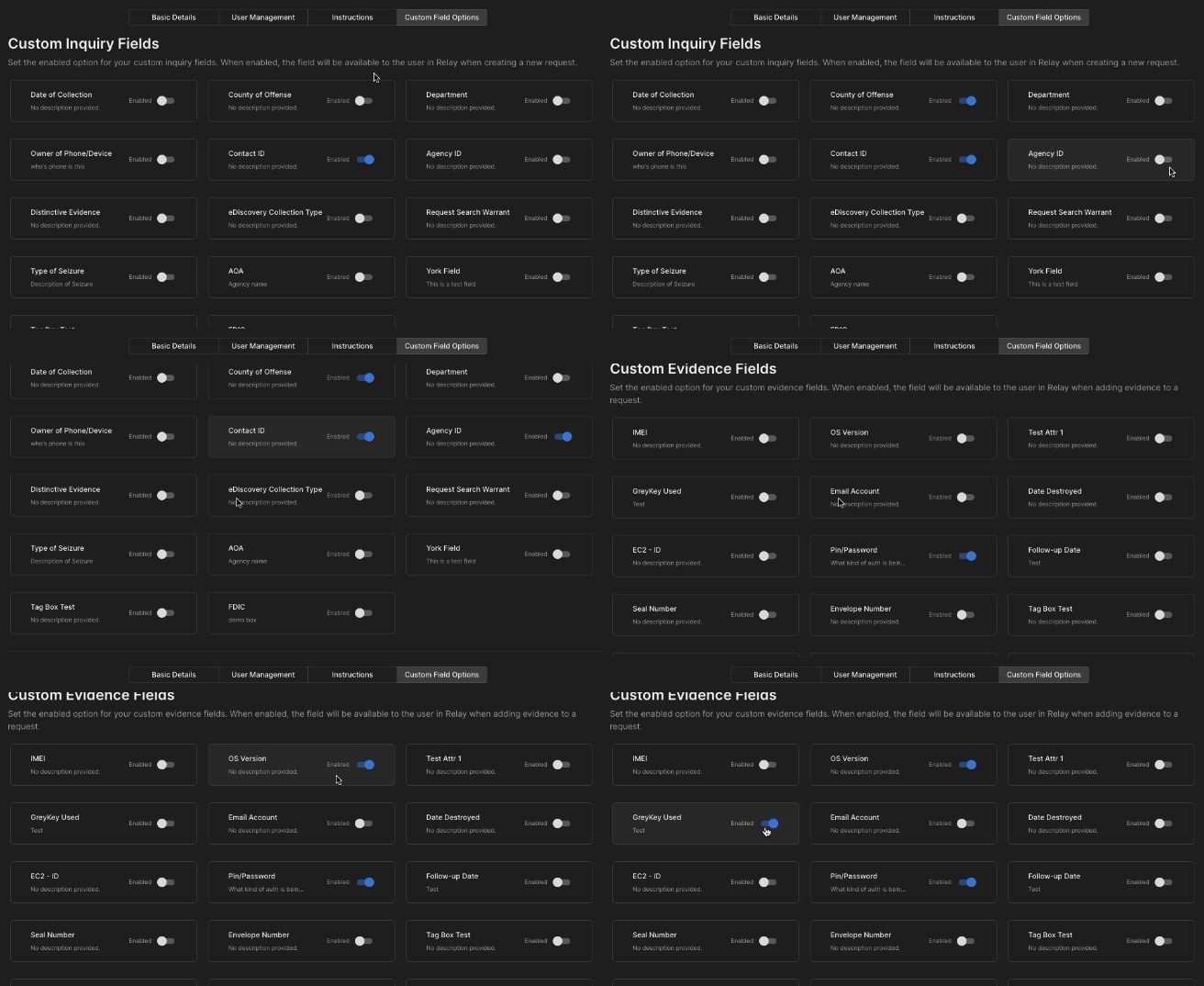
Relay Custom Field Options control which custom fields are shown to requestors when they submit a request through Relay.
Custom fields can be used to collect additional information from requestors during the intake process. These fields can apply to the overall inquiry or to evidence items included in the request.
Inquiry custom fields can also be mapped to Monolith case custom fields. These mappings allow information submitted through Relay to carry forward when an Inquiry is used to create a new Monolith Case.
When merging an Inquiry into an existing Case, Case-level metadata does not carry forward in the same way. Review important Inquiry Custom Field values before completing the merge and manually update the existing Case when needed.
### Custom Inquiry Fields
Custom Inquiry Fields collect additional information about the overall Relay request.
Examples may include:
* Legal authority provided
* Request priority
* Internal department
* Case subtype
* Requested service type
* Special handling instructions
When enabled for Relay, these fields are shown to requestors as part of the request form.
### Custom Evidence Fields
Custom Evidence Fields collect additional information about evidence items submitted with a Relay request.
Examples may include:
* Device condition
* Collection location
* Known passcode
* Search authority notes
* Requested extraction type
* Evidence-specific handling instructions
When enabled for Relay, these fields are shown when requestors add evidence items to their request.
### Mapping Inquiry Fields to Case Custom Fields
Inquiry custom fields can be mapped to Monolith case custom fields.
This is useful when information collected during the Relay request should become part of the Monolith Case record when the Inquiry is used to create a new Case.
Merge Inquiry does not carry forward Case-level metadata in the same way as Create Case. If the request is being merged into an existing Case, review important Inquiry Custom Field values and update the Case manually when needed.
For example, your Relay request form may include a field called **Legal Authority Provided**. If your Monolith cases also have a matching case custom field, the inquiry response can be mapped into that case field so the information remains available on the case after intake.
{% hint style="info" %}
Mapping helps prevent important Relay request information from being left only on the original Inquiry when creating a new Case. When merging into an existing Case, review important Inquiry values separately because the Merge workflow does not populate Case-level metadata in the same way.
{% endhint %}
### Recommended Setup Workflow
To map a Relay inquiry field into a Monolith case custom field:
1. Create the **Custom Inquiry Field**.
2. Create the matching **Custom Case Field**.
3. Edit the Custom Inquiry Field and map it to the Custom Case Field.
4. **Settings > Relay Settings > Custom Field Options**
5. Enable the Custom Inquiry Field for Relay.
6. When an Inquiry is used to create a new Monolith Case, the mapped Inquiry field value is carried into the selected Case Custom Field.
{% hint style="warning" %}
When an Inquiry is merged into an existing Case, mapped Inquiry Custom Fields should not be assumed to populate or overwrite the existing Case Custom Fields. Review those values before completing the merge and update the Case manually when needed.
{% endhint %}
#### Create the Custom Inquiry Field
To create a Custom Inquiry Field:
1. Open **Settings**.
2. Select **Custom Fields**.
3. Open the **Custom Inquiry Fields** section.
4. Click **Create Field**.
5. Enter the field name.
6. Select the editor type.
7. Configure any required options, such as selection options for a drop-down field.
8. Add a description if helpful.
9. Save the field.
The field description can help requestors understand what information they should provide.
#### Create the Custom Case Field
To create the matching Custom Case Field:
1. Open **Settings**.
2. Select **Custom Fields**.
3. Open the **Custom Case Fields** section.
4. Click **Create Field**.
5. Create the case field that should store the information from the Relay inquiry.
6. Save the field.
The Custom Case Field is where the mapped Inquiry response can be stored when the Relay Inquiry is used to create a new Monolith Case.
#### Map the Inquiry Field to the Case Field
After both fields have been created, edit the Custom Inquiry Field.
To map the inquiry field:
1. Open **Settings**.
2. Select **Custom Fields**.
3. Open the **Custom Inquiry Fields** section.
4. Find the inquiry field you want to map.
5. Click **Edit**.
6. Find the **Case Field Mapping** option.
7. Select the appropriate mapping option.
8. Choose the Custom Case Field that should receive the inquiry response.
9. Save the field.
If the inquiry field should not map to a case field, leave the mapping set to **None**.
#### Enable the Field for Relay
Creating and mapping a custom field does not automatically make it visible to Relay requestors.
To show the field on the Relay request form:
1. Open **Settings**.
2. Select **Relay Settings**.
3. Select **Custom Field Options**.
4. Find the custom field you want to show in Relay.
5. Enable the field.
After the field is enabled, requestors can complete it when submitting a Relay request.
{% hint style="warning" %}
Only enable fields that requestors should see and complete in Relay. Enabled fields are available on the Relay request form.
{% endhint %}
### Example: Legal Authority Provided
A lab may want requestors to confirm whether legal authority documents have been attached to the request.
Example setup:
| Field | Example Value |
| ------------------ | ------------------------------------------------------------------ |
| Inquiry Field Name | Legal Authority Provided |
| Editor Type | Drop Down Menu |
| Selection Options | Yes, No |
| Required | Yes |
| Description | Have the proper authority documents been attached to this request? |
| Case Field Mapping | Custom Case Field |
Mapped Inquiry Custom Fields can populate corresponding Case Custom Fields when the Inquiry is used to create a new Case.
When an Inquiry is merged into an existing Case, the merge should not be treated as a Case metadata update workflow. Review important Inquiry Custom Field values and manually update the existing Case when needed.
### Best Practices
* Create the Monolith case custom field before mapping the inquiry field.
* Use clear field names that requestors will understand.
* Add descriptions when a field needs additional context.
* Mark fields as required only when the requestor must provide the information before submitting.
* Map inquiry fields to case custom fields when the information should remain part of the case record.
* Review enabled Relay fields periodically to make sure the request form stays clear and relevant.
### Related Documentation
* [**Relay Overview**](/monolith/relay-request-portal/relay-overview.md)
* [**Using Relay**](/monolith/relay-request-portal/relay-overview/using-relay.md)
* [**Managing Relay Requests in Monolith**](/monolith/relay-request-portal/relay-overview/managing-relay-requests-in-monolith.md)
* [**Relay Administration**](/monolith/relay-request-portal/relay-overview/relay-administration.md)
* [**User Management**](/monolith/relay-request-portal/relay-overview/relay-administration/user-management.md)